
We all know the moment: a browser tab pops up a small banner asking "Allow" or "Block," and we tap one without slowing down. That single click is easy to forget. A month or a year later, few people can name which sites they approved or what those sites can still reach.
A website permission is a browser setting that decides which of your device's features a given site is allowed to use while you are on it. The browser acts as a gatekeeper, and each permission is a separate door it can open or keep shut. The common ones are location (roughly where you are), camera and microphone (see and hear you), notifications (alerts even when its tab is closed), plus clipboard, file downloads, and connected devices.
Each request usually has a legitimate reason. A video conferencing service genuinely needs your camera and microphone. A weather site asks for your location to show the forecast where you actually are. The point of the permission system is that you, not the site, decide which requests to accept — and which to leave closed.
Why reviewing permissions is a good habit
The trouble is permissions outlast the reason you granted them. Picture a site you used once to watch a single online event — you let it send notifications so you would not miss the start. Months later the event is long over, yet that site may still be entitled to interrupt you with alerts you never think about.
Three reasons a quick review pays off
- Access outlives its purpose. A site you approved for one visit — a livestream, a one-time form — can keep the same permission indefinitely unless you take it back.
- Notifications add up quietly. Sites you barely remember visiting can still be allowed to interrupt you with alerts, long after you stopped caring about their updates.
- Forgotten access is hard to audit later. Without an occasional check, the list of sites holding location, camera, or microphone access only grows — and grows harder to remember.
Clearing them out is straightforward — the harder part is remembering to look.
Other ways to keep your browser organized
Keeping the browser updated is the baseline. Beyond that, a few habits round out a tidier setup: review saved passwords for outdated or duplicated entries, clear temporary browsing data periodically, organize bookmarks, and remove extensions you've stopped using.
How browser extensions help create cleaner webpages
Settings and permissions shape what your browser allows. They do less about the advertising that loads on the page once you arrive — banners, pop-ups, autoplay media, and web trackers frequently show up alongside the content you came for.
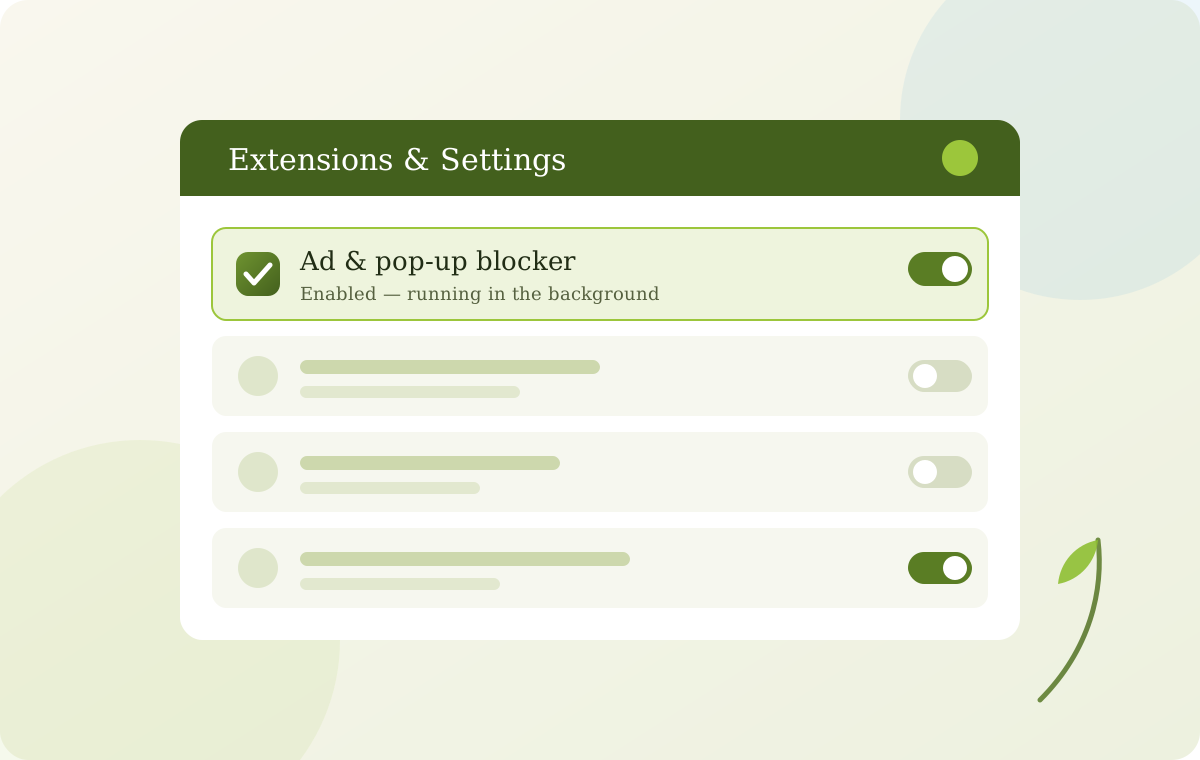
An ad blocker works on this layer, on top of the controls your browser already provides. Its main function is to reduce intrusive ads, and many also limit a portion of the web trackers tied to advertising networks. It helps to be precise, though: an ad blocker is not antivirus software, and it is not a complete cybersecurity solution. It manages advertising clutter and tracking, while your permissions, settings, and habits cover the rest.
Why many users choose the Total Adblock browser extension
It is designed to block intrusive ads, reduce many web trackers, and create a cleaner browsing environment across the sites it supports. In everyday use, the benefit usually shows up as fewer interruptions.
The boundaries are equally clear: it is not antivirus software and does not provide complete cybersecurity protection. Its purpose is narrower — supporting online privacy and improving browsing comfort through ad and tracker management, used alongside your browser's built-in privacy settings and good habits.
Take control of your browsing experience
Reviewing your website permissions is a smart first move toward a cleaner, more private browsing setup. Check which sites can reach your location, camera, microphone, and notifications, revoke what no longer belongs there, and pair that with a browser you keep updated and free of what you no longer use.